
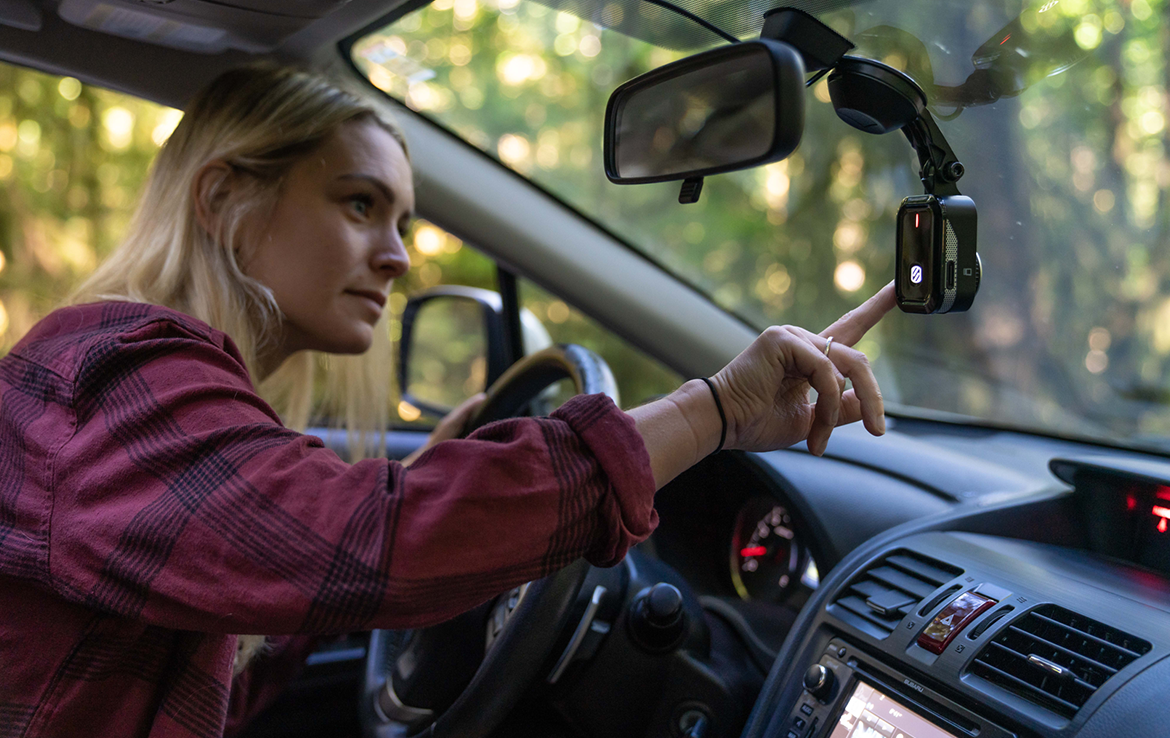
Format your dash cam SD card using FAT32/exFAT, camera-format option, and a quality high-endurance card.
I’ve formatted dozens of SD cards for dash cams during testing and installs, so I know what works and what causes problems. This guide shows why formatting matters, how to format an SD card for a dash cam on Windows, Mac, Android, Linux, and inside the camera, and which file system and settings give the most reliable loop recording. Read on for step-by-step instructions, troubleshooting tips, and real-world advice so your dash cam records cleanly and keeps files accessible when you need them.

Why format an SD card for a dash cam?
Formatting prepares the card with a clean file system. A formatted card uses the correct folder structure and removes leftover files that can interrupt loop recording. When you format an SD card for a dash cam you also clear fragmented files and set the right block size for continuous writes.
Benefits of formatting before use:
- Ensures compatibility with the dash cam firmware
- Prevents file corruption and recording gaps
- Maximizes card lifespan by clearing old data and wear-leveling metadata
- Avoids folder-depth or filename issues some dash cams choke on
When to format:
- New card before first use
- After transferring lots of files to a computer
- If the camera shows errors or missing clips
- Every 1–3 months for heavy use
Choose the right SD card before formatting
Choosing the right card makes formatting safer and recording reliable. Not every SD card is built for constant video writing.
Key specs to look for:
- Card type: microSD; many dash cams use microSD cards
- Endurance: High-endurance or "video" SD cards last longer under constant overwrite
- Speed class: UHS-I U1 or U3 for 1080p; V30 or better for 2K/4K
- Capacity: 32GB, 64GB, 128GB are common; check camera support
- Brand reliability: Choose reputable brands and buy from authorized sellers
Compatibility notes:
- Some dash cams only support FAT32 and will not read exFAT cards.
- Cards above 32GB are often formatted exFAT by default. If the camera needs FAT32, reformat accordingly.
- Check your camera manual for max capacity and recommended file system.
Back up data and prepare before you format an SD card for a dash cam
Formatting deletes files. Always back up what you want to keep.
Pre-format checklist:
- Copy important clips to your computer or cloud
- Note camera settings that may reset after formatting
- Use the camera’s format option first when possible
- Charge your car battery or use park mode power to avoid power loss during format
Preparing the card:
- Use a good SD card reader for your computer
- If Windows won’t format to FAT32 for large cards, consider official SD Association tools or the camera format option
How to format an SD card for a dash cam: step-by-step methods
Here are practical steps for the most common platforms. Choose the method that matches your workflow.
Windows (File Explorer and Disk Management)
- Insert the microSD card into a reader and connect to PC.
- Open File Explorer, right-click the card drive, choose Format.
- Choose File System: FAT32 for smaller cards or exFAT for larger cards if camera supports it.
- Select Quick Format and Start.
- If FAT32 is not available for large cards, use the SD Association formatter or format in-camera.
Windows (SD Association Formatter)
- Download and run the official SD formatting tool.
- Select the correct drive and choose "Overwrite format" for a deeper clean.
- Start and wait for completion.
Mac (Finder / Disk Utility)
- Insert the microSD card.
- Open Disk Utility, select the card (device level).
- Click Erase, pick MS-DOS (FAT) for FAT32 or ExFAT as required.
- Scheme should be Master Boot Record for maximum compatibility.
- Erase to format.
Linux (terminal)
- Identify the device via lsblk.
- Use mkfs.vfat -F 32 /dev/sdX1 for FAT32 or mkfs.exfat for exFAT.
- Confirm with mount to test.
Format the card inside the dash cam (recommended)
- Insert a compatible card into the camera.
- Power the camera and open the settings menu.
- Select Format or Format Card and confirm.
- Let the camera complete the process without powering off.
Why format in-camera:
- Most reliable for setting the exact folder structure
- Ensures firmware compatibility
- Often recommended by manufacturers
Android phones with SD slot
- Insert the card into your phone.
- Go to Settings > Storage, select the SD card and tap Format.
- Choose portable storage (not internal adoptable storage) unless you want to use it only on that phone.
Best file system and allocation size for dash cams
Choosing the right file system matters for reliability and compatibility.
File system guidance:
- FAT32
- Best for cards up to 32GB and many older dash cams
- Broadest compatibility with PCs and cameras
- exFAT
- Good for 64GB and larger cards
- Supports larger single files and faster handling for high-res video
- Some older dash cams do not support exFAT
- NTFS
- Not recommended for dash cams; higher overhead and less common support
Allocation unit (cluster) size:
- Leave default cluster size if using camera format
- If choosing manually, 32KB or 64KB clusters can be good for continuous video writes
- Smaller clusters increase overhead; larger clusters reduce file table activity
Checklist for choosing:
- Check camera manual for file system support
- If in doubt, format in-camera and let the camera choose optimal settings
Tips, troubleshooting, and maintenance for formatted dash cam cards
Common error messages and fixes:
- "Card error" or "Format required" — Reformat in-camera or use SD Formatter.
- Missing clips or fragmented files — Back up and reformat as full overwrite.
- Camera not recognizing card — Use a smaller capacity or FAT32 if camera is older.
- Corrupted files after crash — Try recovery tools, but expect some loss.
- Reformat every 1–3 months for heavy daily recording.
- Use high-endurance cards and replace every 1–2 years depending on use.
- Keep spare cards and swap them during long trips.
- Avoid cheap adapters and poor-quality readers.
Troubleshooting steps:
- Try camera format first
- Test the card with a different camera or reader
- Use official SD tools to check for errors and health
- Replace the card if errors persist
Quick common questions answered:
- How often should I format an SD card for a dash cam?
- Format every 1–3 months for constant use, or immediately if the camera shows errors.
- Can I format a 64GB card to FAT32 on Windows?
- Windows limits FAT32 formatting to 32GB; use a tool or format in camera.
- Will quick format harm the card?
- Quick format is fine for regular use; use full or overwrite format if corruption occurs.
Personal experience and mistakes to avoid when you format an SD card for a dash cam
From my installs and testing:
- I once used a cheap 128GB card labeled "Class 10" and lost files after two months — lesson: buy high-endurance cards.
- Formatting in-camera solved a recurring file corruption problem on one older model dash cam.
- I changed cards on a rental car before a road trip. The new card wasn’t formatted and the camera kept failing to loop properly.
Practical tips I use:
- Always format a new card in the camera first.
- Keep a small pouch with two spare cards and label them by date.
- Log when you last formatted each card in a notes app to keep a maintenance rhythm.
Common mistakes:
- Trusting seller claims without checking endurance ratings
- Using adoptable storage on Android for dash cams (locks card to that phone)
- Not backing up before formatting — you can lose important footage forever
Frequently Asked Questions of How to format an SD card for a dash cam
How often should I format my dash cam SD card?
Format every 1 to 3 months for heavy daily use, or immediately if you see errors or missed recordings.
Can I format a 128GB card to FAT32 for my dash cam?
Windows won’t natively format 128GB to FAT32, but you can use third-party tools or format in the camera if the camera supports FAT32.
Should I format the SD card in the camera or on my computer?
Format in the camera whenever possible for best compatibility; use a computer only if the camera cannot format the card or you need a full overwrite.
Will formatting erase all saved footage?
Yes. Formatting removes all files. Back up any footage to your computer before formatting.
What file system is best for dash cams?
FAT32 is best for older cams and up to 32GB cards. exFAT is suitable for larger cards if your camera supports it.
What do I do if the dash cam says the card is corrupted?
Back up what you can, then format the card in-camera or with SD Formatter. Replace the card if corruption returns.
Conclusion
Formatting an SD card for a dash cam is a simple step that prevents many recording issues and protects your footage. Choose a high-endurance card, format in-camera when possible, and follow the recommended file system and maintenance schedule. Start by backing up any clips, format the card correctly, and keep a small rotation of spare cards to reduce downtime. Try these steps on your next card and leave a note about your results or questions below — I’d love to hear how it worked for you.